28 Features of BIM Pure's Revit Casework Collection
Feb 23, 2026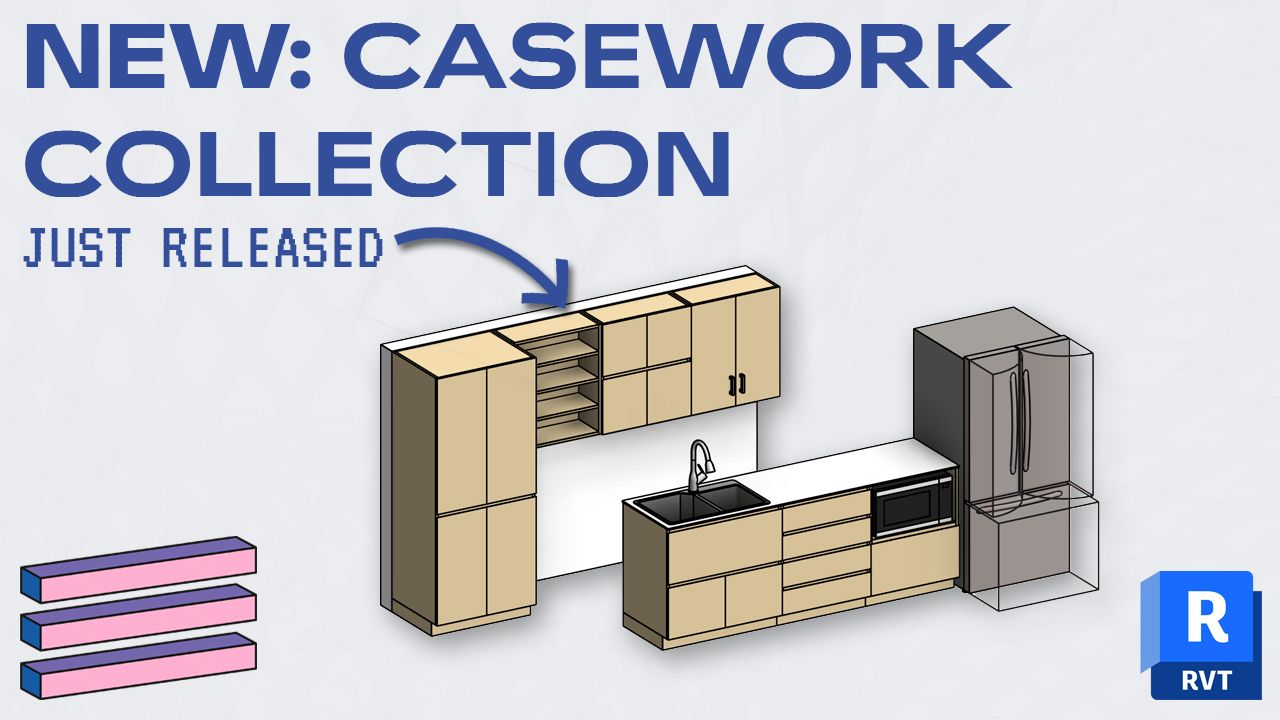
Our brand new Revit casework collection has just been released.
This post explores all the features of the collection.
The collection includes two types of handle: finger pull with a 45-degree bevel, and rectangular handles. The families are separated based on this feature.
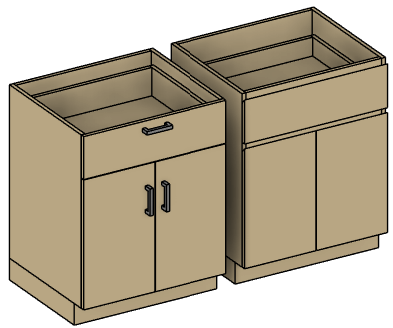
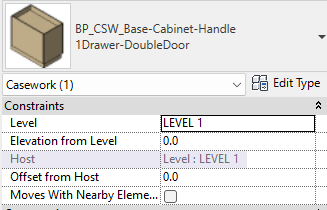
All families in the collection are non-hosted. There are no face-based or wall-based families. This allows users to work with model groups without stability issues.
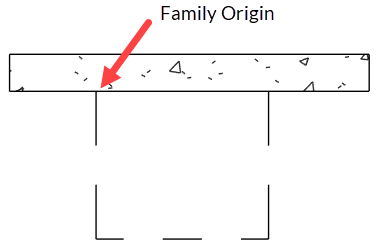
The casework families use the back left corner as their origin. This lets users modify dimensions while the cabinet is placed against a wall without causing intersections.
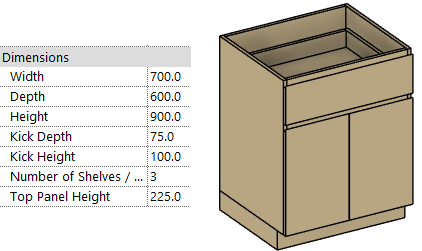
All dimensions are instance parameters. This allows you to easily adjust all required values.
While we believe the casework families with instance based parameters are the best way to work, we also included type-based families. Some users might prefer this workflow on projects with several identical components, or when scheduling and assembly codes are crucial. The rest of this guide focus on the instance-based workflow.
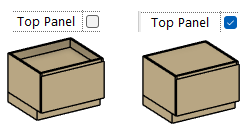
Use this checkbox to toggle the visibility of the top panel element.
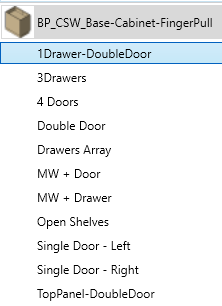
The different cabinet options (drawers, open shelves, 2 doors, 1 door, etc.) are all included in the same family.
Switch between different types in the dropdown menu. This technique allows you to retain the materials and all dimensions when moving from one type to another.

All cabinet families have an instance parameter called Number of Panels / Drawers.
This works both on shelves and drawers. A value of 0 works.
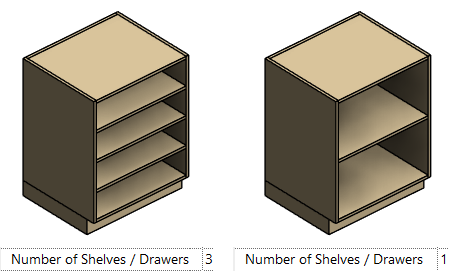
You’ll notice this parameter is available even for types without drawers or shelves. The parameter will simply have no effect.
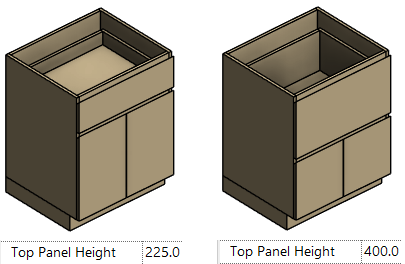
An instance parameter called Top Panel Height allows you to control the horizontal division on certain families. It could include this panel + double doors, 3 drawers, or microwave opening + door.

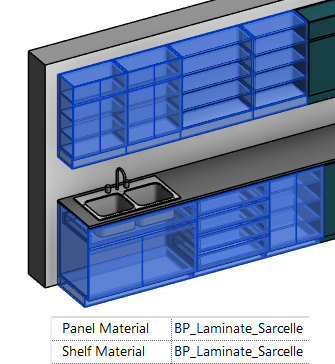
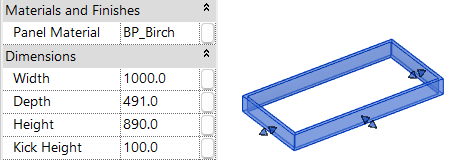
Materials are instance parameters. They are shared parameters, which means you can select different families and modify the material all at once.
You’ll find different parameters for the Panel, Shelves, and Handles.
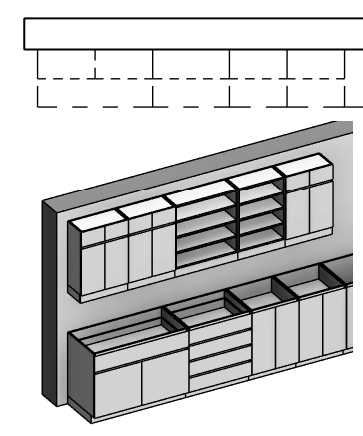
All cabinets are represented by dashed lines in plan views.
The base cabinets have a longer line pattern than the high cabinets, making it easier to distinguish them.
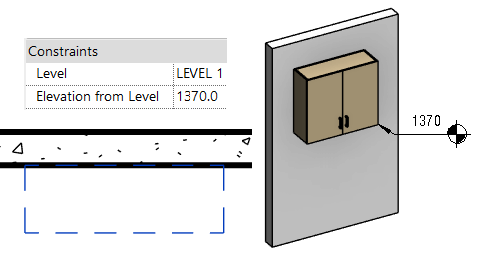
Top Cabinet families are initially be placed at Height = 0. Make sure to adjust the Elevation from Level value to set the height you need.
After, you can easily copy and paste elements to create all additional cabinets, which removes the need to adjust that elevation value.
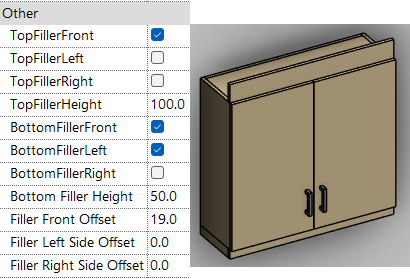
The Top Cabinet families include checkboxes for top and bottom filler options. They also include offset values, in case you want the fillers slightly pushed back.
These are all instance parameters, grouped under Other.
A downside of having fillers directly in the top cabinet family is that you will see a line join between the different cabinets.
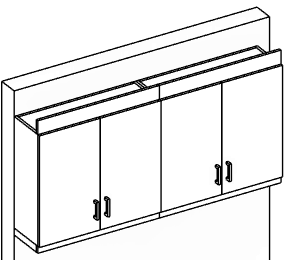
If that annoys you, you can use the family called BP_CSW_High-Filler. It allows for a continuous look among several top cabinets.
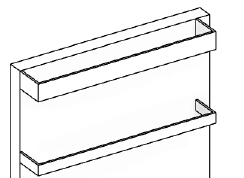
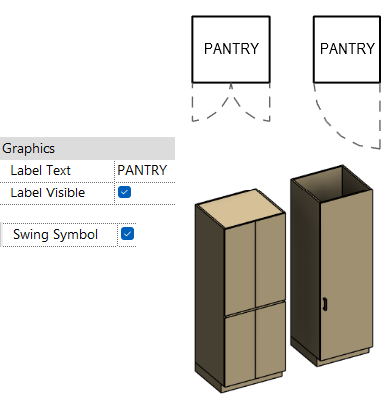
Pantries are provided in separate families from the cabinets.. Instead of being dashed lines, the pantries have solid cut lines in plan views. You can activate the visibility of the door panels with a checkbox.
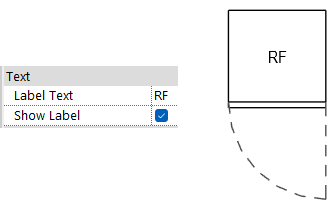
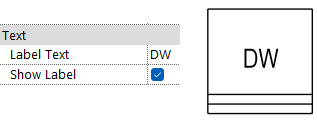
You can also set up a custom text label.
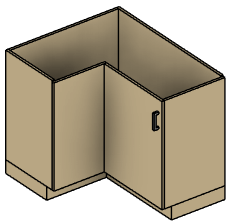
The collection includes a corner cabinet family, with a corner opening door. You can control the length of each segment. The other parameters are identical to the other base cabinet families.
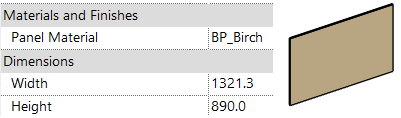
You will find a single panel family. Parameters are simple: material, width, and height.
All base cabinet families have parameters for the kick height and depth. The kick visibility can be toggled.
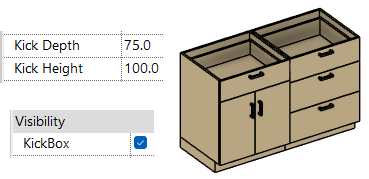
However, the kick box isn’t continuous. You can see a line between the cabinets at the kick. If you want a continuous kick box, we made a separate family just for that.
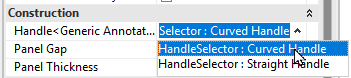
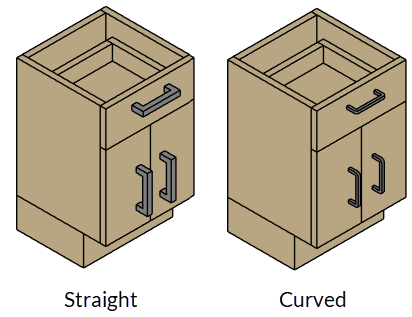
You can switch between two different handles: straight and curved.
On the handle type cabinet families, you will find the parameter under the Handle instance parameter. Pick one of the two options in the dropdown menu.
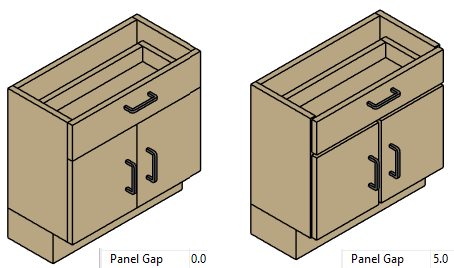
There is a parameter called Panel Gap in the instance properties. This allows you to have a small gap between the panels. This helps to create more realistic-looking 3D views and renderings.
However, we recommend you keep the value at 0. It helps to keep clean elevations with a single line division between panels. You can temporarily switch the value of the panel gap for renderings, and stick to 0 for documentation.
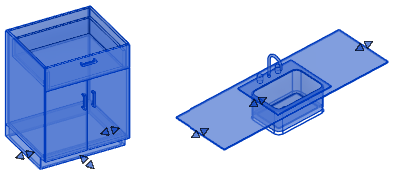
Most families in this collection have grips available in 3D views. This allows you to quickly adjust dimensions. This is made possible by adding reference lines to the families.
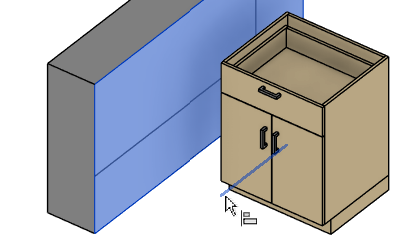
Special trick: in 3D views, use the align tool and tab-select the reference line to stretch the family. If you only want to move the family without stretching it, use the align tool on the family 3D elements instead.
Countertop families are simple. The collection includes a straight counter and an L-shaped counter.
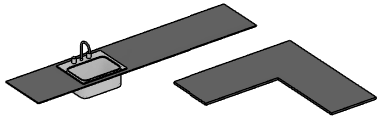
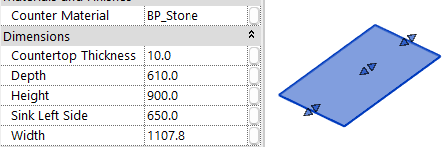
All dimensions and the material are instance parameters.
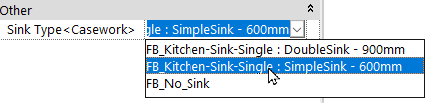
The sink families are nested into the countertop families. The voids are automatically created, as the sinks are nested into face-based families, before being nested into the countertop families.
Select the sink you want to use with the dropdown menu parameter in the instance parameters. If you don’t want a sink, just select the No Sink family.
The L-shaped countertop family has a sink option for both sides:
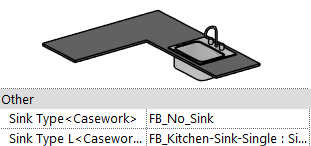
The sinks are nested shared families. That means you can schedule and tag them separately from the counter families.
2D symbolic swing opening lines are visible in elevations. The symbols are based on North America & UK standards, where the lines converge at the hinges.
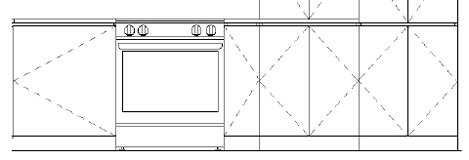
We’ve included a collection of simple, lean appliances. Including:
Single-door refrigerator
French Door refrigerator
Mini fridge
Dishwasher
Microwave
Oven with front controls
Oven with Top controls
Under cabinet hood
Chimney hood
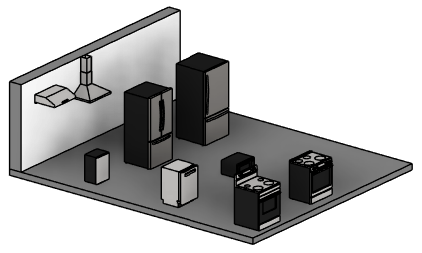
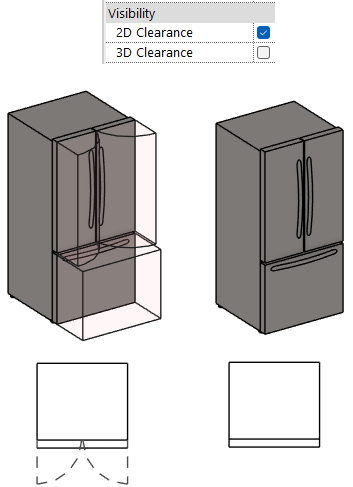
All appliance families include separate 2D and 3D clearance parameters.
You can apply a custom text label in plan view for all appliances. This text value and visibility are instance parameters.
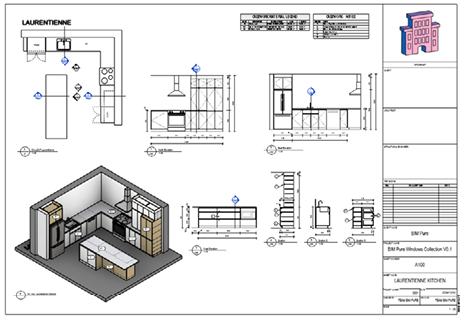
We’ve included several kitchen samples in the collection Revit model. The goal is to give you an idea of how to use these families to model a full kitchen.
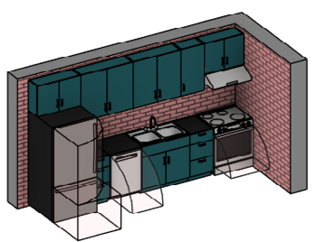
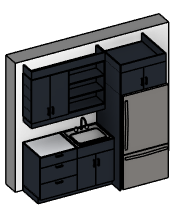
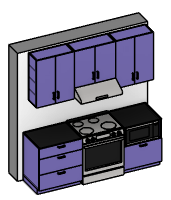
The collection includes drawings placed on a sheet for the Laurentienne sample kitchen. Including 3D view, elevations, sections, legends, material schedules, and notes.
Want to download this collection? Click here.
Enter your details below to get this free guide.