18 Tips to Understand Claude in BIM
Apr 30, 2026
Since the introduction of ChatGPT in late 2022, using AI has been somewhat straightforward. Ask a question, upload a PDF, provide a bit of context, and get an answer.
But the latest improvements have unlocked incredible abilities, especially for enterprise customers.
Claude has been at the forefront of this push.
However, using the latest advancement requires more technical understanding. There is a lot of jargon, complex terms, and relations you need to understand.
This post explains everything you need to know to get up to speed with the new AI advancements, with a focus on Claude. We have more AI tutorials that will be more focused on specific workflow. This guide sets the foundational knowledge, so we don't have to reexplain key AI concepts all the time.
This is meant for BIM and AEC professionals. 90% of the content applies to all knowledge workers, but we'll use examples from BIM and architecture you should be familiar with.
Special thanks to: Antoine Paré-Mailloux, Michael Kilkelly, Alex Ritivoi.
Last update: June 9th 2026
Let's go.
Claude is a large language model created by Anthropic, initially released on March 14, 2023.
While it was niche for the first couple of years, it exploded in popularity in the last year.
ChatGPT remains the king for "consumers", but enterprise tech early adopters are all moving towards Claude. The Claude Code tool has been especially popular with software developers.
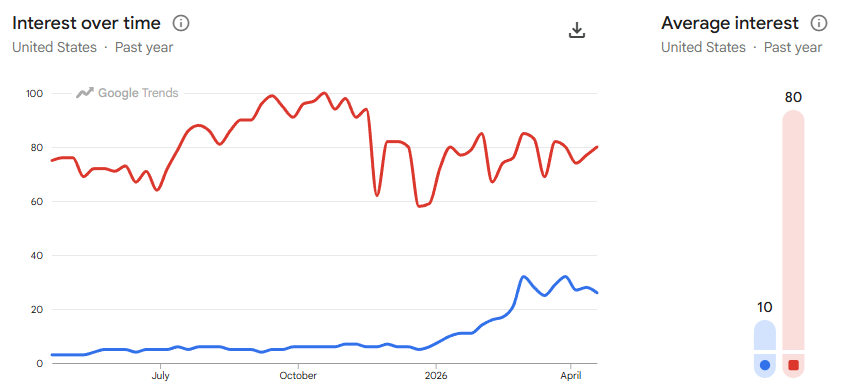
In this Google Trends chart, you can see that Claude has been flat for most of 2025, but jumped to 25% around March.
While Claude has a free tier, but you can’t do much with it. For serious work, you will need a paid subscription:
Claude Pro: $20 USD/month
Claude Max: $100 to $200 USD/month
Team Plans:
Team Annual: Minimum 5 seats - $1,500 USD/year
For larger organizations, team plans unlock SSO login, shared workspaces, central billing, and team management.
Larger companies need to contact Anthropic for Enterprise plans.
A token is the universal unit used by AI models like Claude and ChatGPT. One token is roughly 4 characters, or three-quarters of a word. Both your prompts and the model's responses count as tokens.
Claude doesn't publish exact token counts for its plans, but users have reverse-engineered approximate values. There are two layers of limits: a 5-hour rolling session limit and a weekly limit.
Avoid burning your tokens: Cowork and Code sessions use tokens much faster than regular Chat (often 10x to 50x more) because they run more steps. A few heavy Cowork tasks can burn all your tokens, especially on the cheapest plan.
If you hit your limit, you can either wait for the reset, upgrade your plan, or enable "extra usage" to keep working.
Every Claude conversation has two separate token limits that most people mix up. Your usage limit is your spending budget: ±44k tokens per 5-hour window on Pro.
Your context window is Claude's working memory for a single conversation: 200k tokens, holding everything at once, including your messages, uploaded files, instructions, and connector results.
A heavy PDF can cost 5k to 15k tokens. On Pro, one big document can wipe a significant chunk of your 5-hour session before you've asked a single question.
The context window also fills with noise over time: old messages, connector results from earlier steps, irrelevant files, etc.
As the conversation flows, Claude quietly loses track of earlier instructions, and the output can become weird. This is called context rot.
To avoid context rot, start a fresh conversation for each new topic, upload only what's needed for that specific task, and use markdown files with instructions instead of large PDF files.
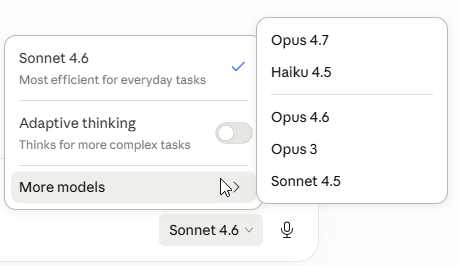
When using Claude, you can decide which model to use. The best models burn tokens more quickly.
If you aren't sure, Sonnet is best for most tasks. Use Opus when doing complex work.
Model versions update regularly. You might see Sonnet 4.5, Sonnet 4.6, and so on. The latest version is usually the best choice.
Anthropic also has a model called Mythos, but it isn't available to the public because it's very scary and similar to the Terminator.
June 9th 2026 Update: Anthropic just released a new powerful model called Fable, similar to Mythos, but without some cybersecurity capabilities. It's better than Opus, but it will burn more tokens.
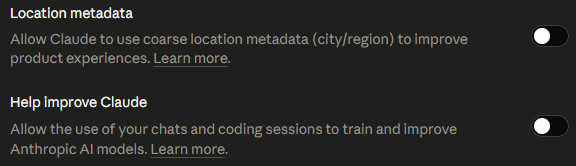
Before your first conversation with Claude, you should adjust key settings. First, go to Privacy and deactivate the Location metadata and Help improve Claude options. If active, Claude will use all conversations to train and improve the model. You can't turn these off on the free plan.
Secondly, go to the General settings and adjust the personal preferences text. This will be used in all conversations, in all projects. Don't make it too long.
Key things to add:
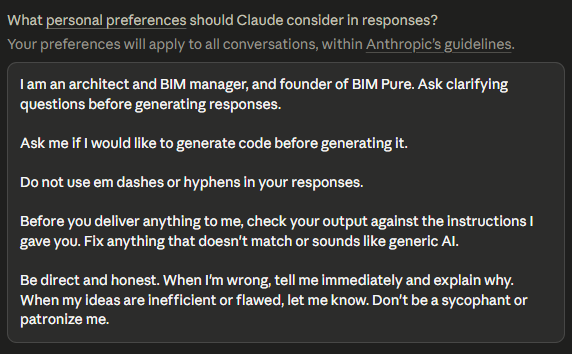
Full text you can copy/paste:
I am a [job description], and I work for [Company name].
Ask clarifying questions before generating responses.
Ask me if I would like to generate code before generating it.
Do not use em dashes or hyphens in your responses.
Before you deliver anything to me, check your output against the instructions I gave you. Fix anything that doesn't match or sounds like generic AI.
Be direct and honest. When I'm wrong, tell me immediately and explain why. When my ideas are inefficient or flawed, let me know. Don't be a sycophant or patronize me.
Special thanks to Michael Kilkelly and his course Claude Workflows for Architects for ideas on what to include in the instructions.
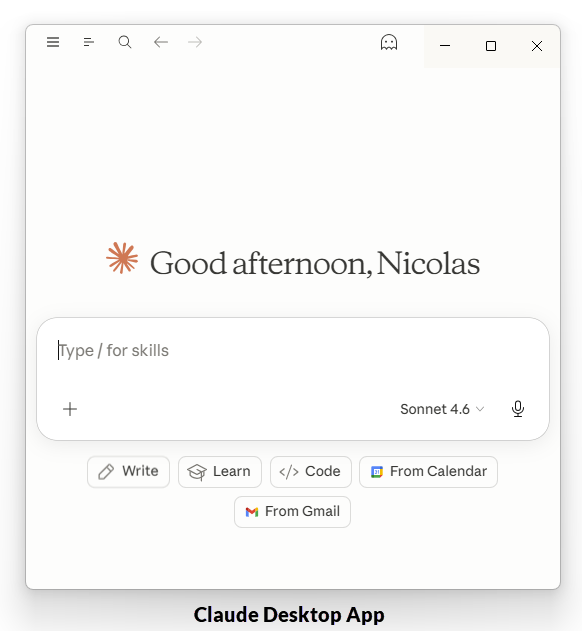
For certain tasks, you will need to download the desktop application instead of using the web browser version.
While both Claude and ChatGPT have desktop applications, the Claude app is superior. It can connect to local applications (such as Revit) using an MCP server.
Cowork is only fully functional on desktop, since it requires direct access to your local files and computer.
Claude has three different modes. Select which one you want to use at the top left of the app.

Let's explore the difference between them.

Claude Chat: The default mode, similar to ChatGPT. You exchange messages, provide context, and get answers, files, and generated content.

Claude Cowork: The agentic mode. You describe what you want done, Claude figures out the steps and does the work directly on your computer, reading and writing files in your local folders. You come back to a finished result (if everything goes right).
Claude Code: A tool for creating, reviewing, and modifying code. Designed for developers, but non-technical users have found it useful for building their own tools and automations.
What if you could download this entire post in PDF format? This is Pamphlet 39. Get the free download here:
If you have used ChatGPT in the past, you will find Projects familiar. For different tasks, you can start from different projects.
In this example, you can see I have Claude projects for the Revit API, another to help develop our membership, and more.
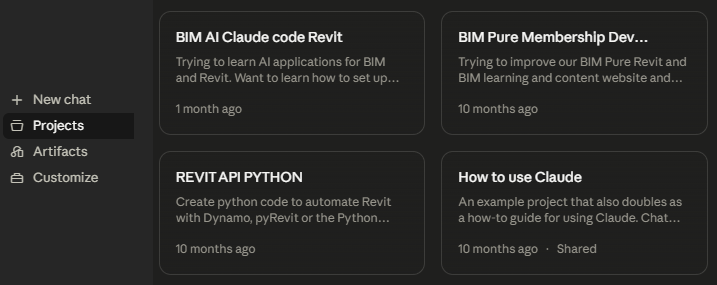
Each project has unique text instructions. You can give extra context, explain the goal of the project, specify how you want Claude to answer. This will be used on top of the instructions you have set in the general settings.
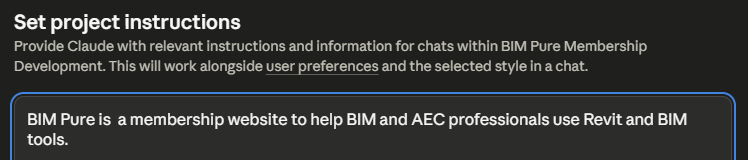
You can also add files, such as text or PDF, to give extra context and references in that project. As an example, you could include branding guidelines for a project to help create graphic design elements for your company.
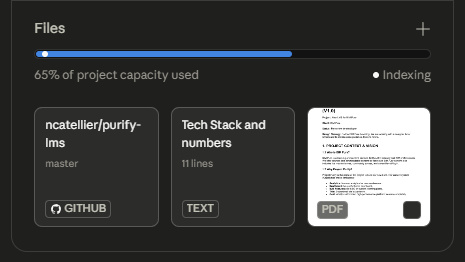
All this information is stored on the cloud.
Warning: Avoid uploading several large PDFs unless they are genuinely relevant to every conversation in that project.
Claude can generate files directly in the Chat, including Word, PowerPoint, Excel, PDF, or HTML files. These are cloud-based elements called Artifacts. You can access them on the cloud or download them locally. You can see the full list of artifacts in the menu.
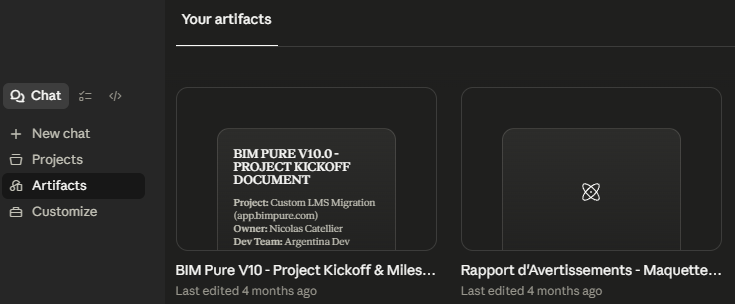
Artifacts are specific to Chat. In Cowork and Code, Claude writes files directly to your computer or your code repository, so there is no need for an artifact. The file simply appears where you told Claude to put it.
Update: As of April 21st, 2026, Cowork has added a new Live Artifact feature.
Magic starts happening when you connect applications to Claude.
Claude has built-in connectors for many applications: Gmail, Google Calendar, Notion, Asana, etc. Click on the + icon to see your current connectors, or add new ones.
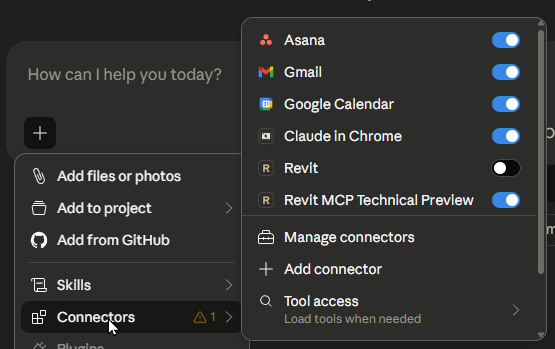
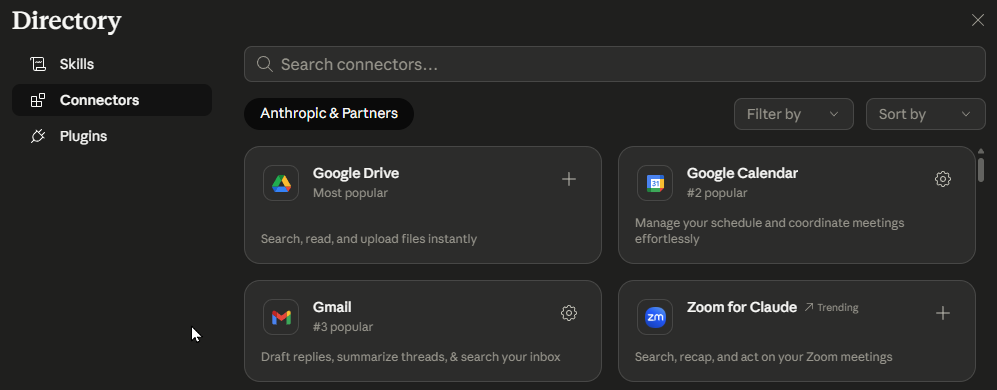
Once connected, you can ask Claude to pull information from these apps, or even take action. For example, you can ask Claude to write an email draft on Gmail.
Connectors are available on all Claude layers: Chat, Cowork, and Code.
To avoid context rot, you can deactivate specific connectors when starting a new chat.
In this example, we connect Gmail and ask Claude to write a draft email to Nicolas Catellier saying "thanks 4 doing all this bim stuff bro".
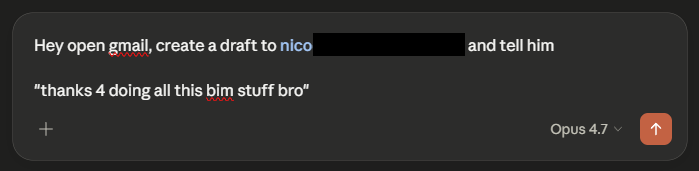
You can see all the steps Claude takes to write this email draft.
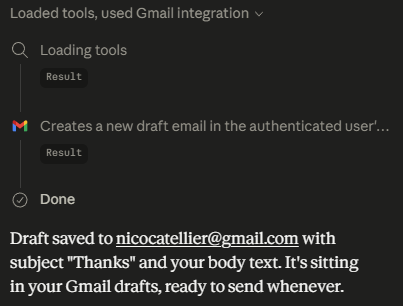
Going to my Gmail box, I can indeed see this draft.
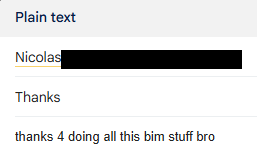
Obviously, this is a dumb example, but you can combine email draft writing with other tasks.
A Markdown file (.md extension) is a text file with light formatting (headings, bullets, bold).
Markdown files are more efficient than PDFs inside an LLM. PDFs carry hidden formatting, fonts, and layout data that bloat the context window.
These files are specifically useful in Cowork and Code. The most important one is CLAUDE.md, placed in your project folder, which gives Claude its general instructions for that project. In regular Chat, the equivalent is the Project instructions text box.
Markdown files are also used in other parts of Claude, such as Skills (see next point). Here is an example of a Markdown file for a BIM Pure writing skill.
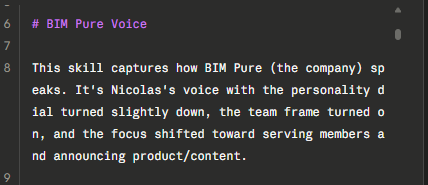
No vendor lock-in: Unlike content stored inside Claude's interface, .md files live on your computer. If you ever switch to another AI tool, your instructions come with you.
A skill is a reusable set of instructions you deploy for specific tasks.
Let's say you want to write a guide about Revit families, but you don't want boring, generic AI writing. You can create a skill that describes how you like to write for technical BIM writing.
BIM Managers can go further: by combining a skill with an MCP server, connectors, and Cowork, you can automate entire workflows. For example, verifying the number of Revit warnings, generating a report, and creating a task on Asana for the BIM coordinator, all from a single prompt.
Skills are created as Markdown (.md) files. You don't have to write them yourself: ask Claude to help you build one.
Claude can automatically use one of your skills if it matches a task you are asking for.
Or you can type / in to see your full list of active skills.
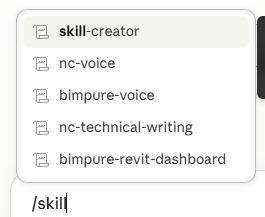
Be careful: Skills can be stored on the cloud or locally. If local, you might not see the same skills across different devices.
Inside Chrome, go to the Extensions menu and search for Claude.
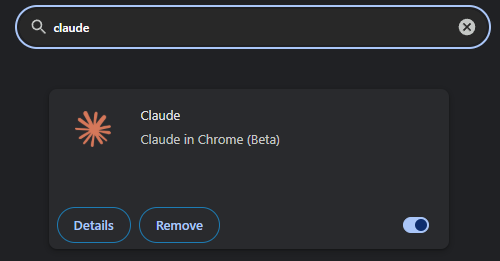
Once installed, Claude can see and interact with whatever is open in your browser: reading pages, clicking buttons, filling forms, and extracting information.
This method is slower and less reliable than using a direct connector or API. Claude is essentially browsing the interface the way a human would, which works but takes time.
Browsing the web can be part of a series of multiple tasks and skills when using Cowork. You could browse the web with the extension, extract information, and prepare an email draft with this information.
Claude Cowork is the "agentic" version of Chat. Instead of a back-and-forth conversation, you describe an outcome, and Claude figures out the steps, executes them, and comes back with a finished result. At least, that's the theory.
Cowork is the new kid on the block. It was released on January 12, 2026.
You know you are working with Cowork if you see the subtle grid-like dot pattern in the background.
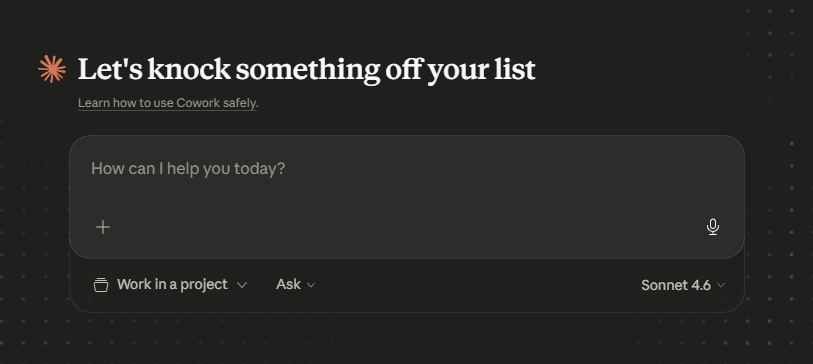
Cowork combines everything: connectors, skills, the Chrome extension, and direct access to your local files. It can read, create, and modify files on your computer, which regular Chat cannot do.
Cowork can also work using projects, but those are separate from the regular Chat projects and need local files.
It also relies on your Markdown files, including CLAUDE.md for project instructions and your skills for reusable workflows. That means Cowork is device-specific: your local MD files won't be the same on your laptop and desktop computer.
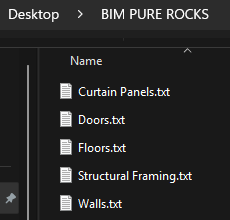
As a dumb example, we can ask to create a new folder with text files inside it:
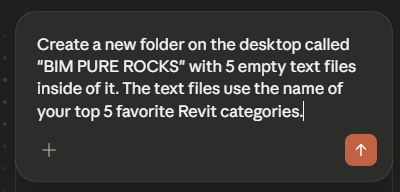
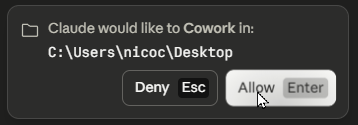
Claude might ask for permission to work on that folder.
Claude does create the folder and the text files:
Token burn watch: this burns A LOT of tokens. 10x to 50x more than regular chat. A few heavy tasks, and you just hit your limit.
Security risks: since this can modify, create, and even delete local files, Cowork can raise major security concerns. Talk to your friends at IT.
MCP stands for Model Context Protocol. It allows you to link applications to AI models.
For example, Autodesk recently released an MCP server for Revit. This allows you to use Claude and "talk" to your Revit model, and even execute tasks.
MCP servers are universal: in theory, they can connect to any AI applications. You will find that some are better suited for this. For example, the ChatGPT desktop application doesn't work with the Revit MCP server, while the Claude desktop app does.
MCP servers don't have to be "official". For Revit, several third-party companies or individuals have released their own MCP servers, which are often more complete than the official one.
Inside the Claude desktop app, a successfully installed MCP server appears as a connector, alongside the web applications with direct connections.
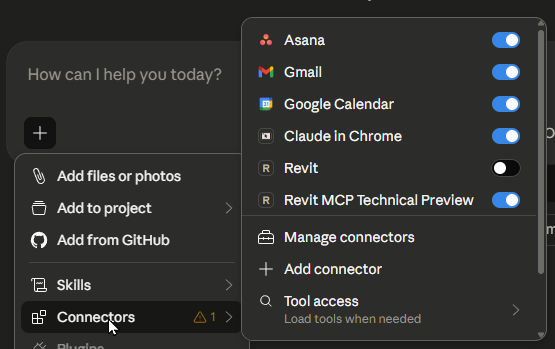
There is another tool called Plugin.
It can bundle Skills, Connectors, and Slash commands into a single install. Instead of setting each piece up individually, you get a complete, role-specific setup from the start. Anthropic ships official plugins for common functions: sales, finance, legal, marketing, HR, and more. You can also build your own.
Plugins are not available in regular Claude Chat. You need to use Cowork.
To add a new Plugin, ensure you are in Cowork and click on the + icon. Click on Add plugins...
You will see a list of default Anthropic plugins, such as Marketing, Design, etc. It is also possible to create your own.
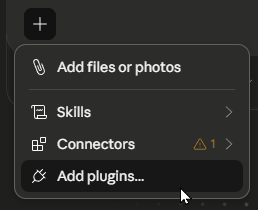
A BIM Manager could build a plugin that combines a Revit MCP connector, a family audit skill, a BIM Pure writing style skill, and a /audit-warnings command.
Plugins can be shared across your team.
Now for the big scary beast.
Claude Code has been causing a little revolution in the software development realm.
I talked to several developers whose job is now mostly to manage and guide Claude Code rather than write code themselves.
You describe what you want in plain language. Claude figures out the steps, writes the code, and keeps going until the job is done. It runs inside a terminal, the Claude Desktop app, or directly in your browser at claude.ai/code.
However, you still need a minimum of technical knowledge to use it properly. Understanding what a code repository is, how GitHub works, the main programming languages, front-end vs back-end, etc.
Claude Code was made for developers, but it's increasingly being used by non-technical people to build their own tools and automations.
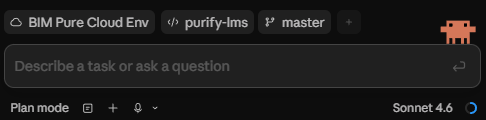
For the BIM and AEC space specifically, you can use Claude Code to automate tasks inside Revit or other apps.
Claude Code is a whole topic by itself. We'll explore it in upcoming posts and guides. Stay tuned.
This is an introduction to Claude with the key base concepts. We're planning a series of live sessions with various experts in BIM + AI. Join the waitlist, and we'll let you know when it's ready. This will be included in the BIM Pure membership.
Enter your details below to get this free guide.